
Microsoft Windows 10 end of life is scheduled for October 14, 2025, and if you’re still running this popular operating system, it’s time to prepare. Without continued updates or security patches, businesses and individuals risk security vulnerabilities and system instability. Whether you’re planning to upgrade to Windows 11 or considering using a managed IT services provider for help, now is the time to act.
What Does Windows 10 End of Life Mean?
When an operating system reaches its end of life, Microsoft stops releasing:
- Security updates
- Performance and stability patches
- Technical support
That means devices running Windows 10 will become increasingly vulnerable to cyberattacks. If you’re a small business or enterprise, this could put customer data, productivity, and compliance at risk.
Is the Windows 11 Upgrade Free?
Yes—but there’s a catch. You’ll only be able to take advantage of the free Windows 11 upgrade if your PC meets Microsoft’s hardware requirements:
- 64-bit processor with 1GHz or faster, 2+ cores
- 4GB RAM minimum
- 64GB storage
- UEFI firmware with Secure Boot
- TPM 2.0 (Trusted Platform Module)
- DirectX 12 compatible graphics
- 720p or higher display
To check your computer’s eligibility, download Microsoft’s official PC Health Check Tool.
How to Upgrade from Windows 10 to Windows 11
To safely and successfully upgrade your operating system, follow these steps:
- Backup your data. Always perform a full system and data backup before upgrading your OS. Upgrades can sometimes cause software conflicts or data loss.
- Install Windows Updates. Go to Settings > Update & Security and install all current Windows 10 updates.
- Check for Windows 11. Once eligible, the upgrade option will appear under Windows Update. In some cases it may not appear and you will need to go to Microsoft’s website and download the Windows 11 Upgrade Assistant.
- Install the upgrade. Follow Microsoft’s guided steps to install Windows 11.
- Reboot and verify. After installation, check that files and applications are working correctly.
If your system doesn’t meet the requirements, you may need to consider hardware replacement or purchasing new Windows 11-compatible devices.
Why Backups Are Essential Before an OS Upgrade
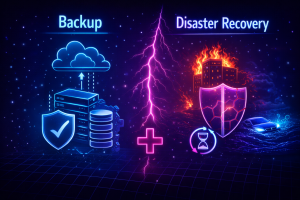
Every Windows operating system upgrade carries risk. Data loss, software incompatibility, or interrupted installations can create serious business disruptions. Always back up your data—preferably with a cloud-based and local backup solution—before upgrading.
Need Help Upgrading? Partner with BlueHat
If you run a business and want expert help with Windows 10 upgrades, device replacements, or IT support for operating system migrations, BlueHat is here to assist. As a trusted managed IT services provider, we handle:
- Windows 11 upgrade planning and rollouts
- Device compatibility assessments
- Secure data backups and recovery
- Business-class system replacements
Let BlueHat help you transition safely and efficiently before the Windows 10 end-of-life deadline arrives.
👉 Contact BlueHat today to schedule a consultation and learn how we can simplify your upgrade process.